How to Find Your Order URL in ShipForUs and ShipHero
Last updated: April 30, 2026
Overview
When submitting a claim via /claim in Slack, you need to provide an order link or order ID from either ShipForUs or ShipHero. This guide shows you exactly where to find it in both systems, with screenshots.
Both platforms show the same order data — use whichever one you have access to.
Finding the Order URL in ShipForUs
ShipForUs (shipsfor.us) is the client-facing portal for order data. Most CS agents and clients will use ShipForUs rather than the full ShipHero platform.
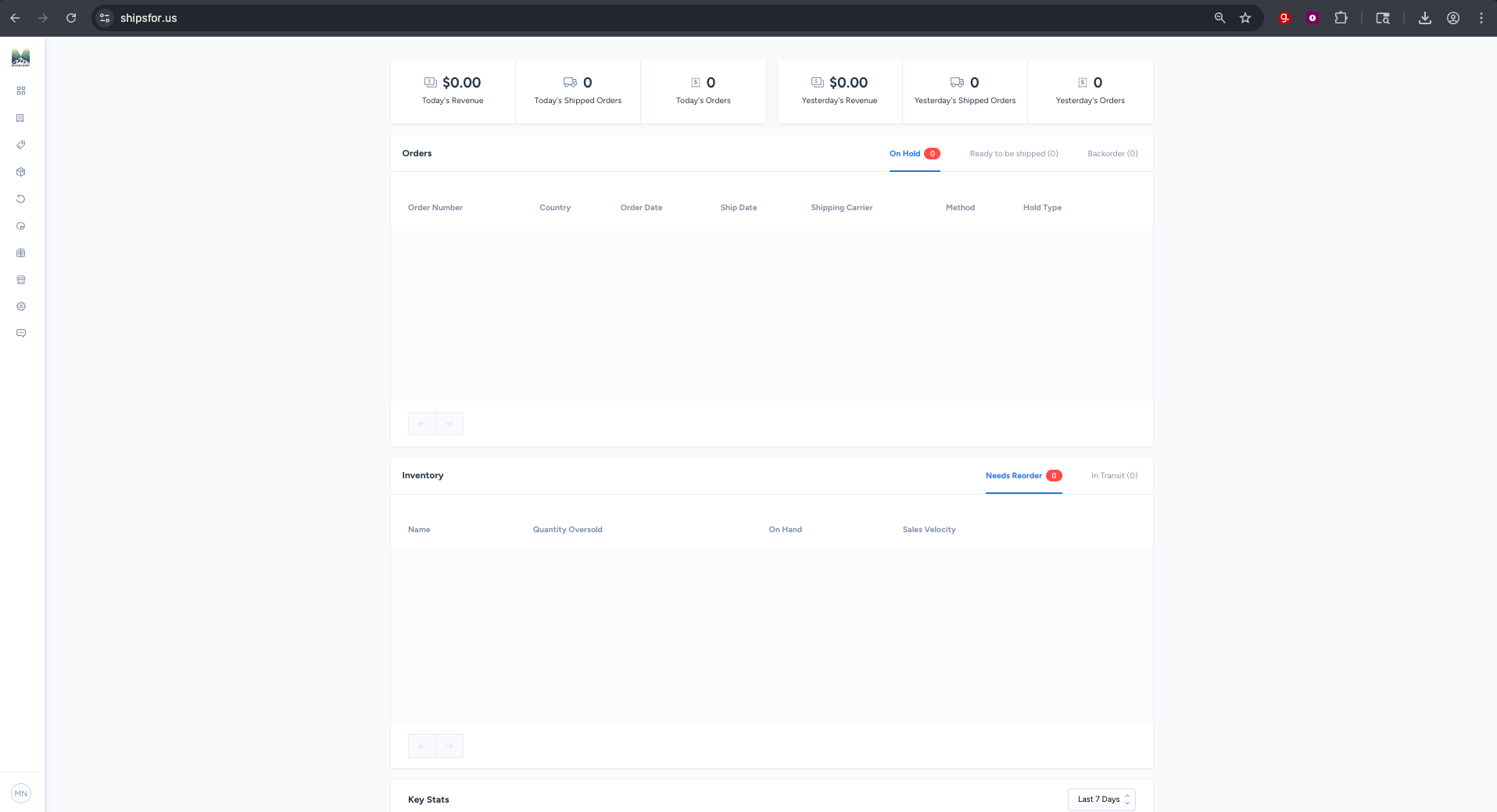
Step 1 — Log in and go to Orders
Log in at shipsfor.us. From the left sidebar, click Orders.
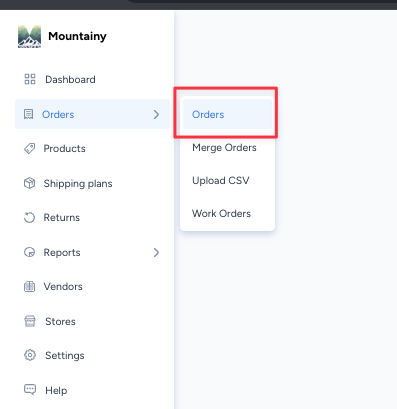
Step 2 — Find the order
Use the search bar to find the order by order number, customer name, or email. Click the order number (shown in blue) to open the order detail page.
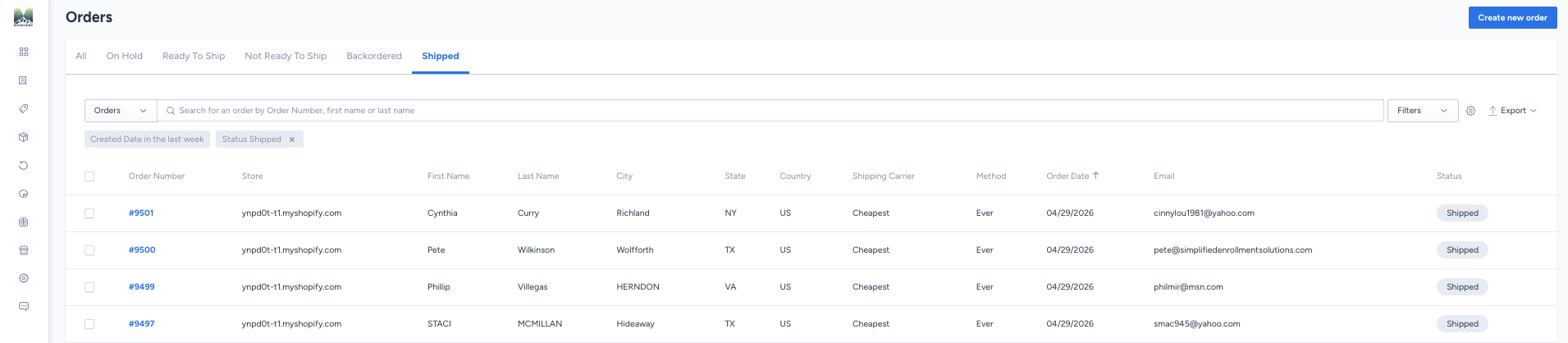
⚠ Important: If you cannot find the order, adjust your filters — the default view is filtered to "Created Date in the last week" and "Status: Shipped." Change the date range or status filters depending on the order you're looking for.
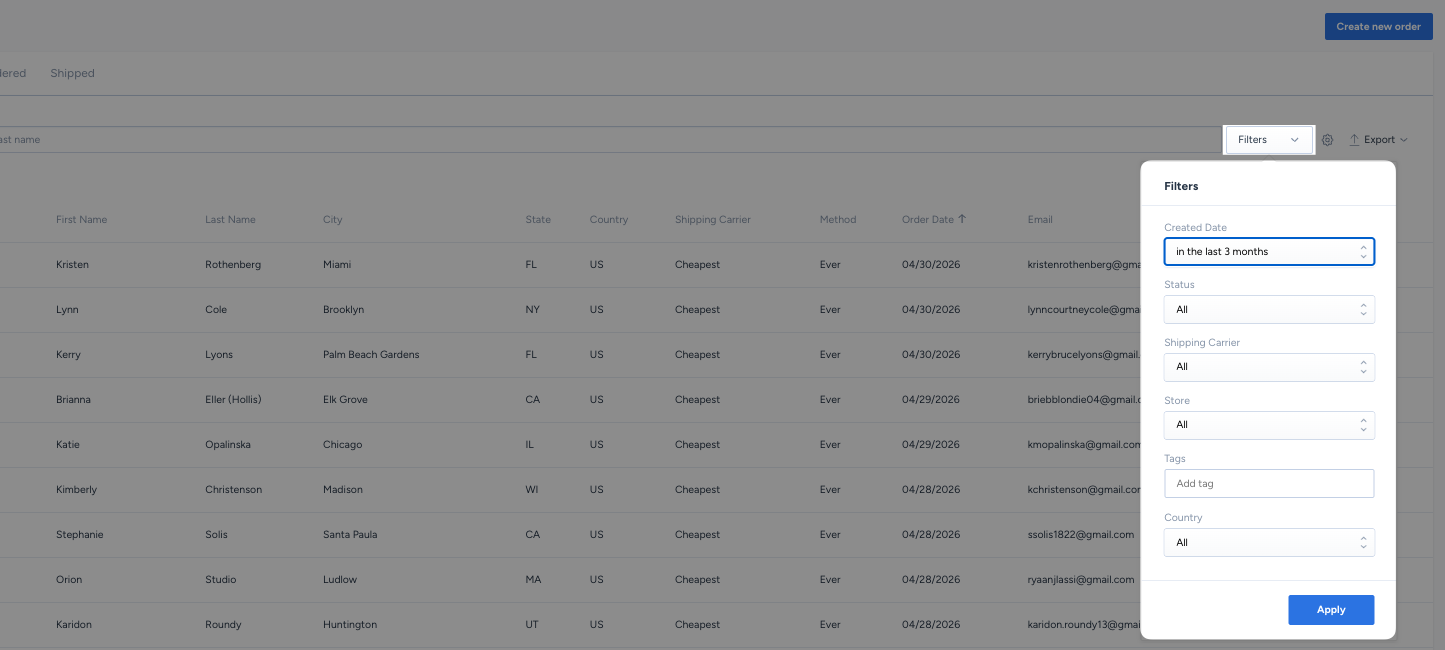
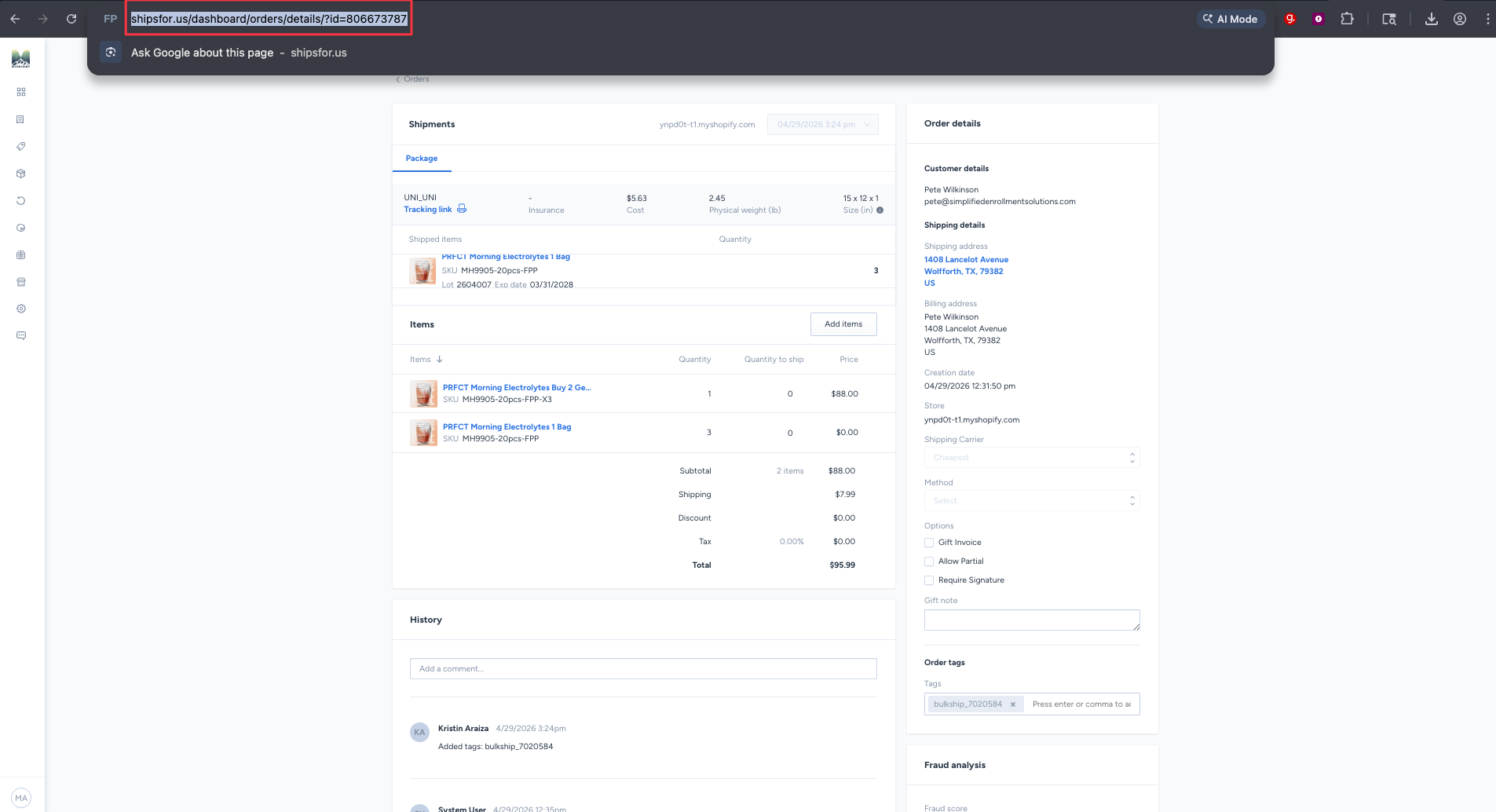
Step 3 — Copy the URL from your browser
Once you're on the order detail page, copy the full URL from your browser's address bar. It will look like:
shipsfor.us/dashboard/orders/details/?id=806673787
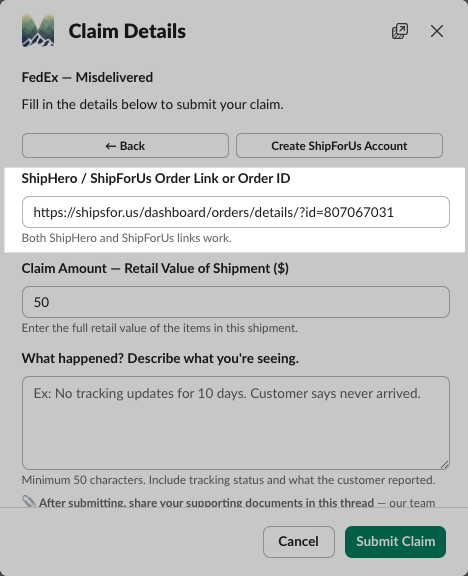
Paste this URL into the Order Link field when submitting your claim via /claim in Slack.
Tip: You can also paste just the numeric ID at the end of the URL (e.g. 806673787) — the claim bot will accept either format.
Finding the Order URL in ShipHero
ShipHero (app.shiphero.com) is the full warehouse management system. If you have ShipHero access, you can find order URLs here as well.
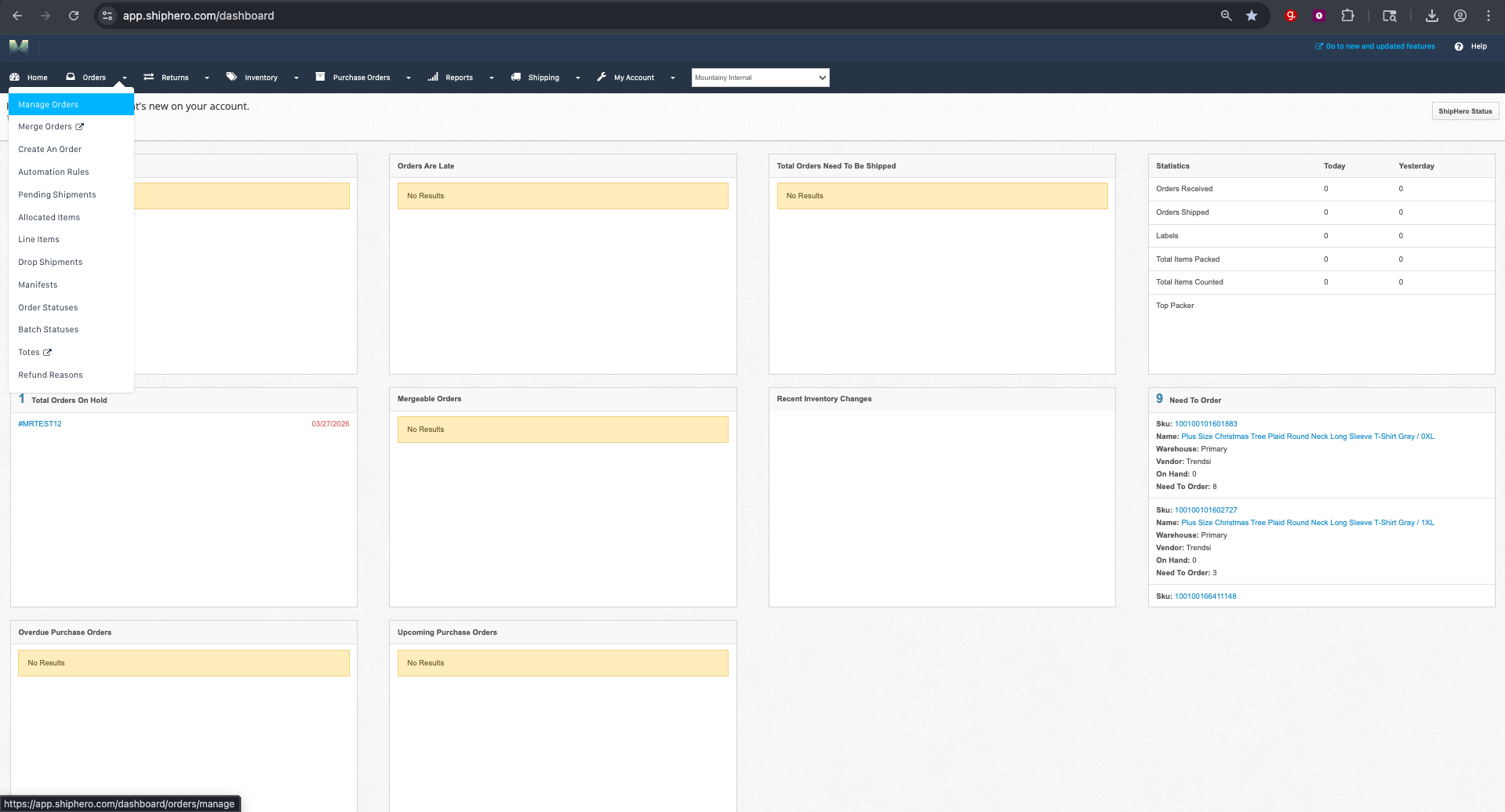
Step 1 — Go to Orders → Manage Orders
From the top navigation, click Orders, then select Manage Orders from the dropdown.
Step 2 — Search for the order
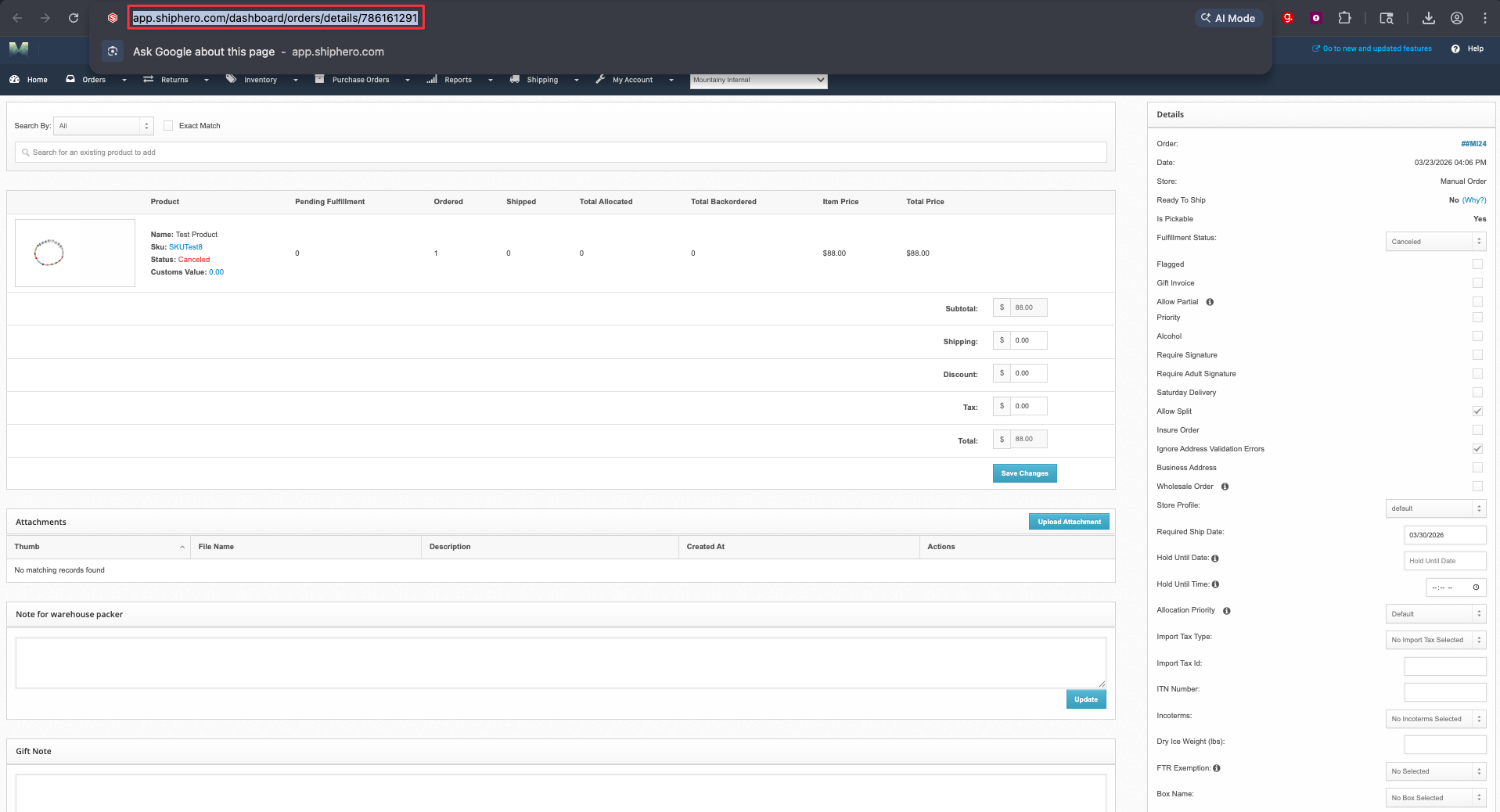
Use the search bar to find the order by order number (e.g. #MI24). Click the order number link in the results to open the order detail page.
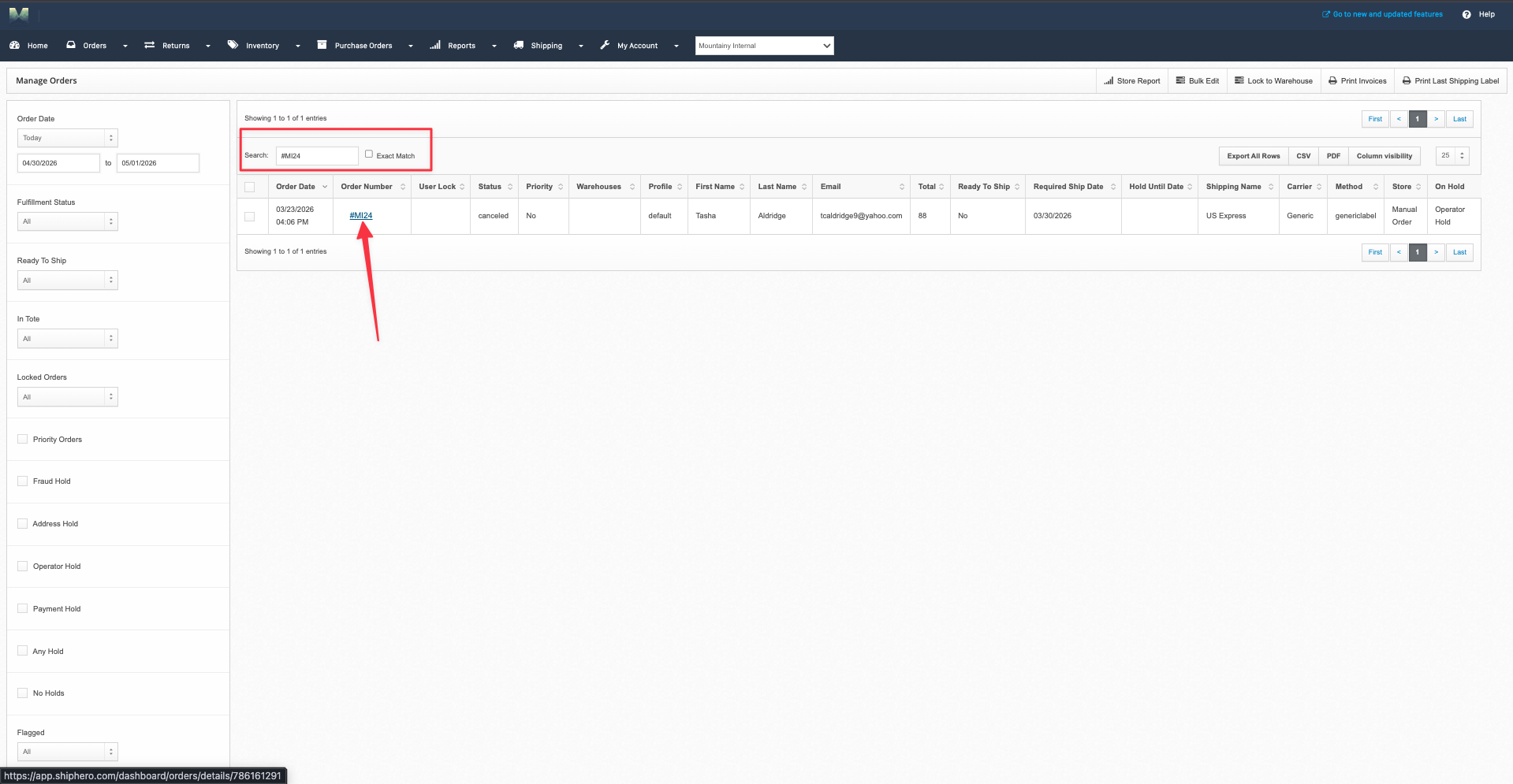
Step 3 — Copy the URL from your browser
Once you're on the order detail page, copy the full URL from your browser's address bar. It will look like:
app.shiphero.com/dashboard/orders/details/786161291
Paste this URL into the Order Link field when submitting your claim via /claim in Slack.
Tip: The numeric ID at the end of the URL (e.g. 786161291) also works on its own — no need to paste the full URL if you prefer.
Quick Reference
Platform | URL Format | Where to Find It |
|---|---|---|
ShipForUs |
| Orders → click order number → browser address bar |
ShipHero |
| Orders → Manage Orders → search → click order → browser address bar |