How to Generate a Return (app.shiphero.com & shipsfor.us)
Last updated: April 6, 2026
Returns happen, and when you need to generate a return manually, our platform makes the process easy. You can create Return Merchandise Authorizations (RMAs) to track merchandise returned from customer orders, enabling you to receive merchandise back into the system, accurately calculate credits or refunds owed to the customer, and process exchanges where applicable.
NOTE: You might need to be pre-approved for returns before getting started. Please contact your 3PL account manager for pricing and approval.
Depending on which interface you are using, the steps to create a return differ slightly. Below are the step-by-step instructions for both the shipsfor.us Client Portal and the legacy app.shiphero.com dashboard.
Creating a Return in the shipsfor.us Portal
For most users, the shipsfor.us portal is the primary interface for managing orders and returns.
Log into your shipsfor.us account.
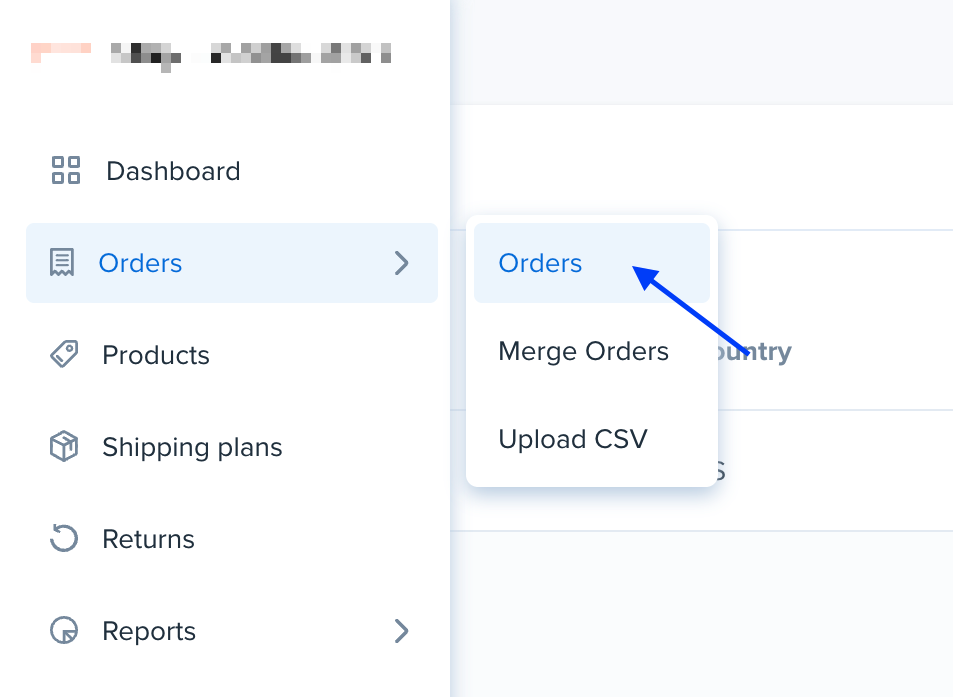
Navigate to Orders > Orders on the side menu.
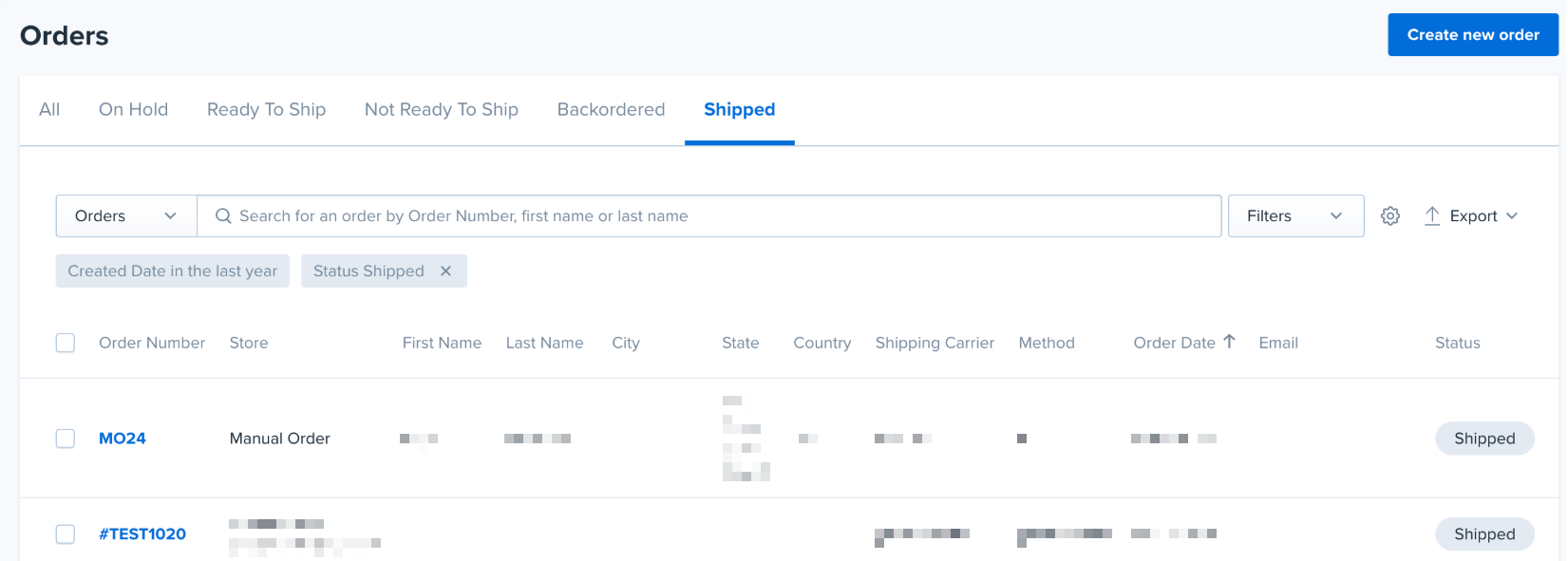
Click on the shipped order you want to return, which will open the individual order details page.
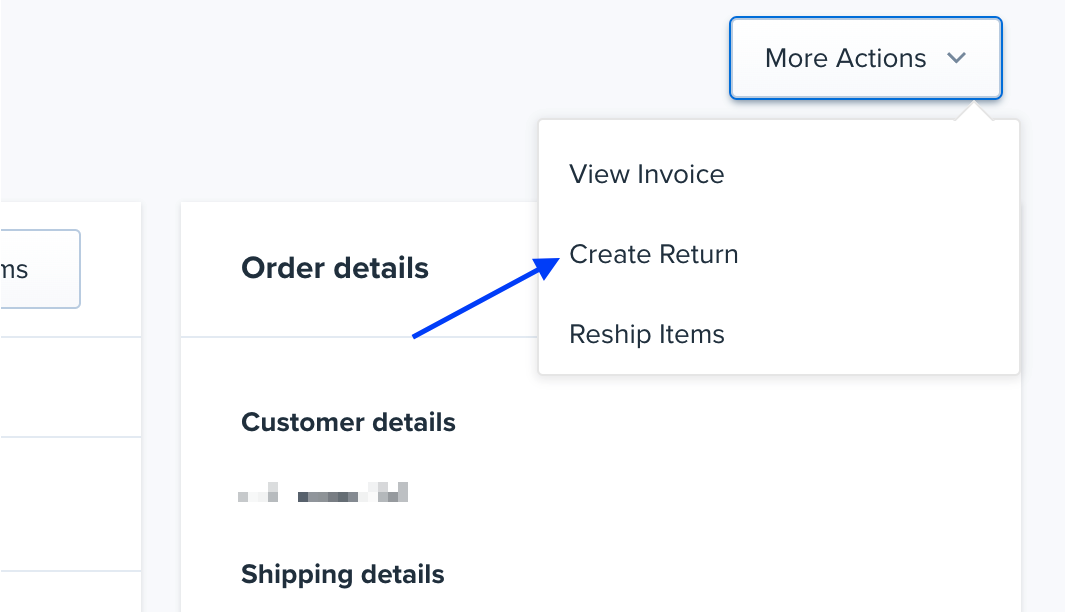
In the upper right-hand corner, click the More Actions drop-down menu and select Create Return.
On the Create Return page, select the checkbox next to the items you'd like to return.
Choose the quantity to return by typing in the number, then select the Return Reason and the Return Type from their respective drop-down menus.
Review the Customer Information section. This data is pulled automatically from the original order.
Optional: Add a Return Note if needed.
Review the Shipping Info section. Adjust the dimensions and weight if applicable, and select the Shipping Carrier and Method for the return label.
Please note that for returns, only the following carriers can be used: USPS, UPS, and FedEx.
Select Self Return - Generic label if you only need to generate the RMA without purchasing a shipping label.
To finish the process, click Create return. You will be brought to the return confirmation page.
Important Note on Refunds If you are manually creating RMAs in the portal, you may still need to manually process the actual financial refunds in your ecommerce store (e.g., Shopify, WooCommerce). The portal handles the physical return authorization, but not the payment gateway refund.
Creating a Return in app.shiphero.com
If you are using the legacy ShipHero dashboard, follow these steps to create a manual return (RMA).
Open the Order Details page for the order you want to create a return for.
Scroll down to the Actions section and click Return Order. A new page will appear, displaying the return order interface.
Select the checkbox next to the product(s) you wish to return.
Input the Quantity to return, select the Return Reason and the Return Type from their respective drop-down menus.
Optional: Add a Note for each line item on the return. The note will appear on the Returns > All Returns page in the Internal Notes column, which can be exported.
Review the Customer Information section. This data is pulled from the original order.
In the Return Options section, select Return to Warehouse and choose whether or not to email the customer the return label.
By default, the return label is emailed to the customer email address from the customer info section. You can choose "Do not email customer return label" if you don't want it to automatically send.
Review the Shipping Info section. Adjust the Weight if applicable and select the Return Label Type. Choose the Shipping Carrier and Method for the return label.
Click Generate RMA.
What if Customer Data is Obscured?
Sometimes customer data is hidden or obscured for a particular order. Before trying to generate the return label, be sure to reach out to the customer to get their information and fill in these fields manually. Without the actual, unobscured data, the return label will not generate.