How to Handle Reshipments with Mountainy
Last updated: March 2, 2026
Overview
Reshipment requests are a normal part of ecommerce fulfillment. Most reshipment conversations stem from one of the following scenarios:
Package damaged in transit
Package lost in transit
Missing items upon delivery
Marked delivered but not received
Package in transit for an extended period of time
In many of these cases, we will file a carrier claim (when eligible). However, filing a claim does not automatically mean the order will be reshipped. The decision to reship ultimately belongs to the brand. Many brands choose to reship right away to protect customer experience, while others wait for carrier confirmation first.
How Reshipments Can Be Processed
There are a few different ways we can process a reshipment, depending on how your brand would like it handled.
Option 1: Backend Reshipment (Internal)
We can mark the original order for reshipment inside ShipHero. This creates a second shipment tied to the original order.
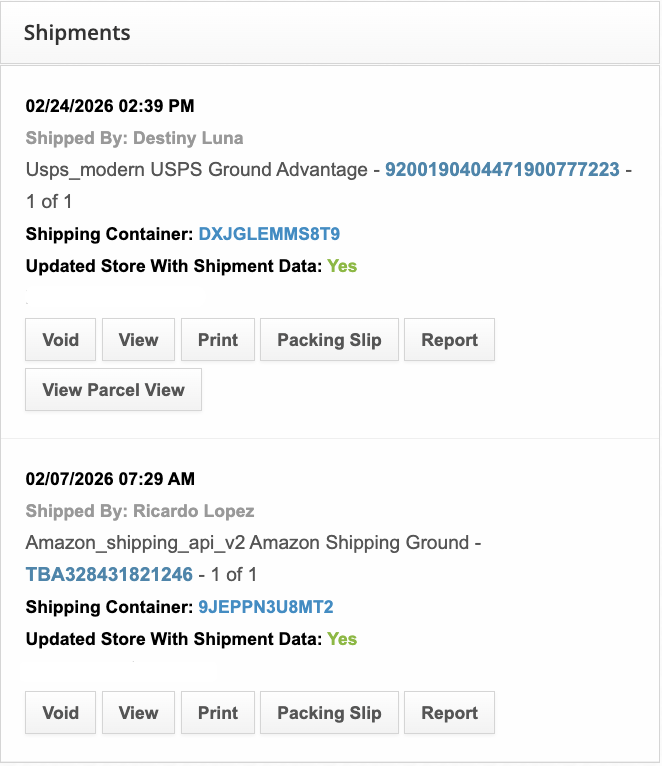
Important notes:
The new tracking number does not push back to Shopify
Tracking remains visible inside ShipHero
This method is clean internally but does not automatically update the customer-facing order in Shopify.
Option 2: Create a 100% Discounted Replacement Order in Shopify
You may choose to create a new order in Shopify at 100% discount when this is done, Shopify treats it as a completely new order — and ShipHero will also ingest it as a new order once it syncs over.
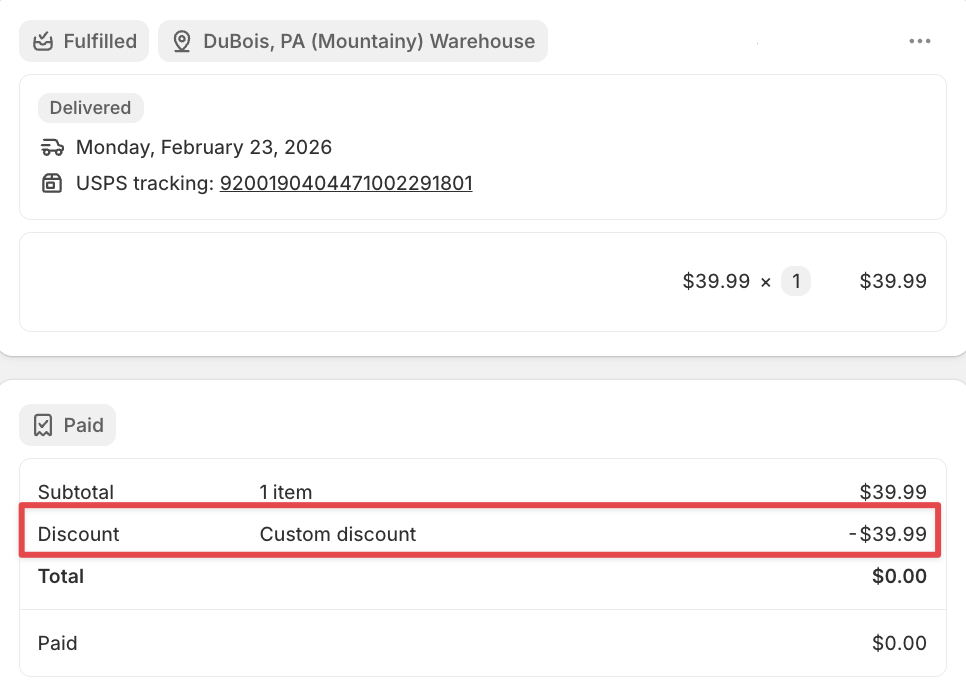
This means:
A new order number is created
The order flows into ShipHero like any standard order
It will allocate inventory normally
It will generate a new shipping label
The new tracking number will automatically push back to Shopify
The customer will receive normal tracking notifications
This option provides the cleanest customer-facing experience because everything updates properly within Shopify and the customer’s original order history.
Many brands prefer this method when:
Customer communication clarity is important
The customer is actively tracking the order
You want the replacement shipment fully documented inside Shopify
You want reporting and analytics to reflect the reshipment separately
In most cases, creating a new Shopify order for the reshipment is the best practice, as it keeps the customer fully informed and makes it easier to track performance and replacement trends over time.
How to Reship an Order Through the 3PL Portal
If you prefer to initiate the reshipment yourself, you can do so directly inside the 3PL Portal.
Step 1: Accessing the 3PL Portal
To begin, navigate to the ShipHero client portal:
Go directly to: https://shipsfor.us/account/login/
Sign in using the account credentials provided by your Mountainy account manager.
If you have not received login credentials, please contact the Mountainy team before proceeding.
Step 2: Locate the Order
Once logged into the portal, navigate to the left-hand sidebar and click on “Orders.”
This will bring you to the Orders dashboard, where you can search and filter for the order you’d like to reship.
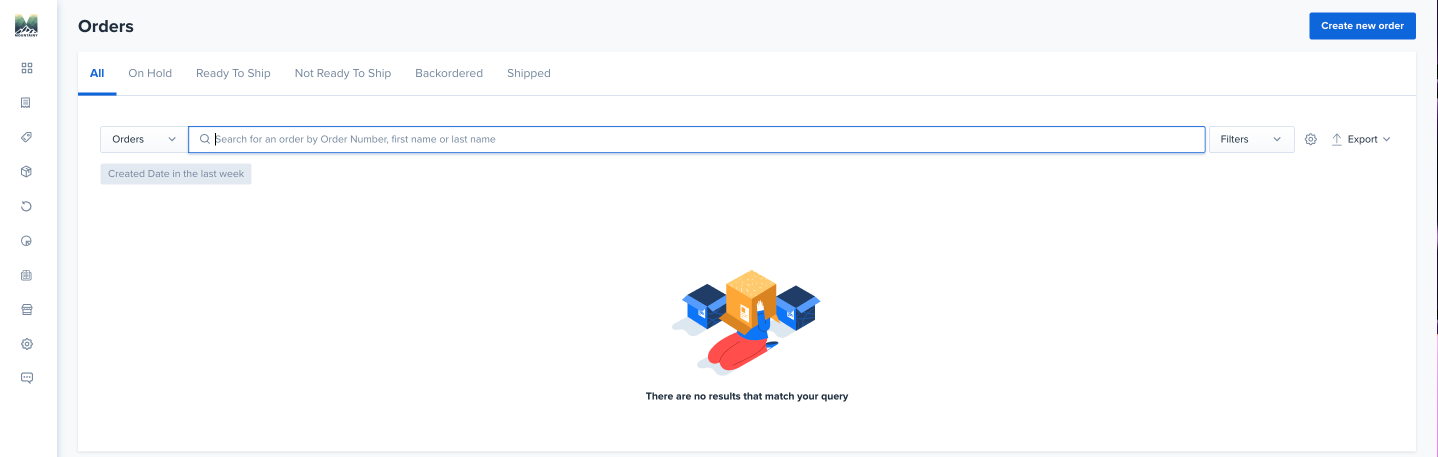
You can locate the order by:
Entering the order number directly into the search bar
Adjusting the date range filter (if the order is older)
Applying additional filters such as status, store, or tags
If you are unable to find the order immediately, make sure your Created Date filter is set wide enough (for example, “In the last 3 months” or “All time”).
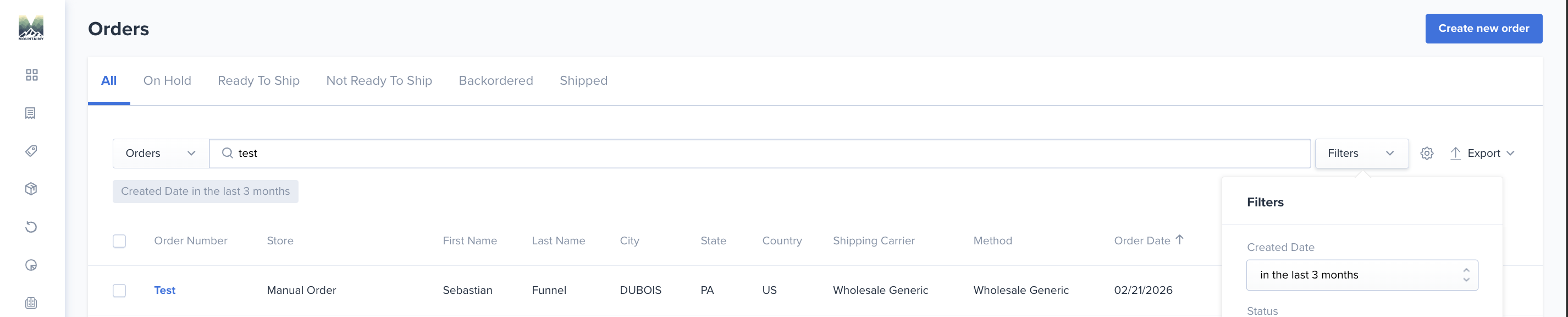
Once you’ve located the correct order, click into the order details to proceed with the reshipment process.
Step 3: Select Items & Confirm Reshipment
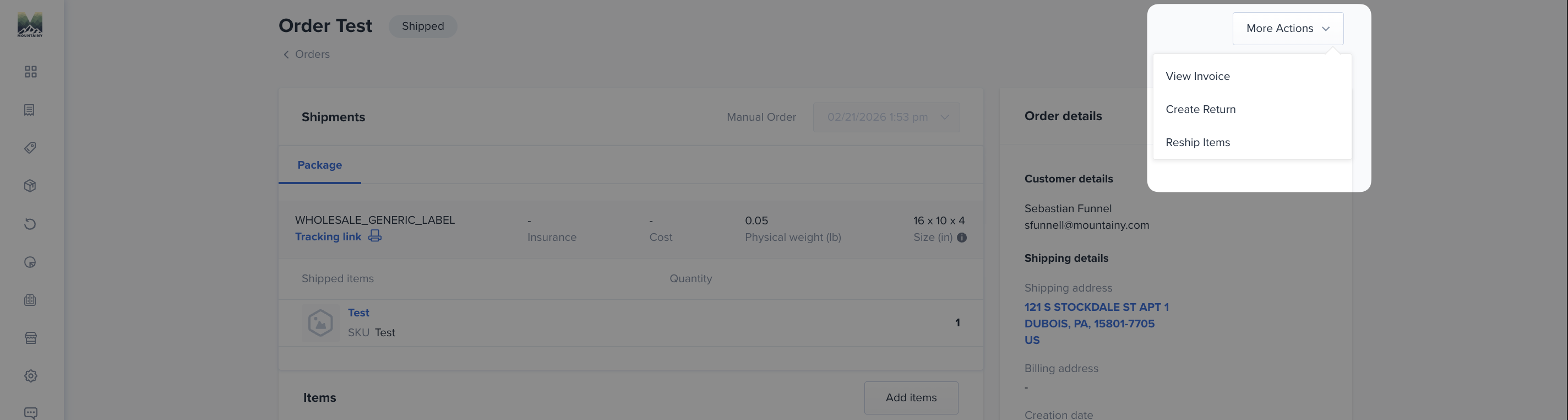
Once inside the order, click the “More Actions” dropdown in the top right corner and select “Reship Items.”
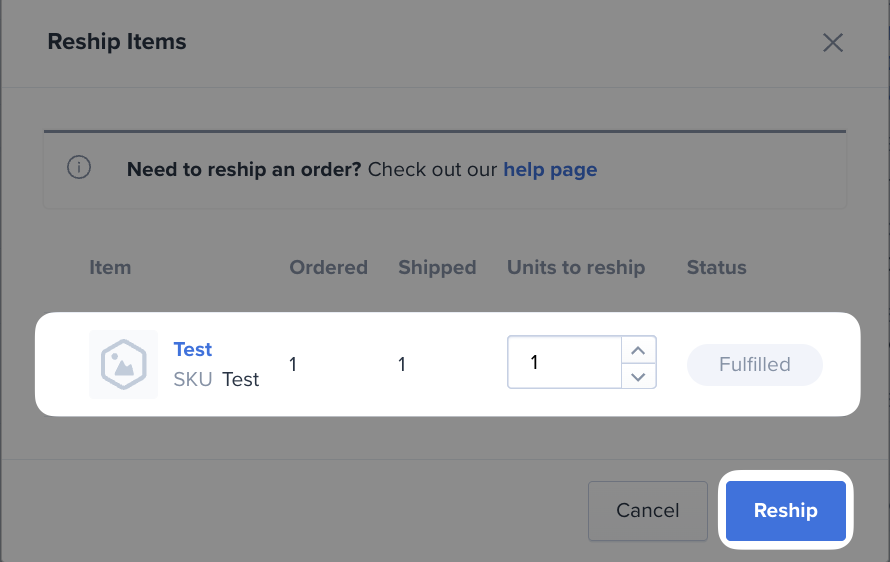
A reshipment window will appear showing:
The items in the original order
The quantity originally ordered
The quantity shipped
A field labeled “Units to reship”
From here, adjust the quantity for the SKU(s) you would like to resend.
If you would like to reship the item, enter the quantity needed.
If you do not want to reship a specific item, leave the quantity at 0.
If no items need to be reshipped, simply cancel out of the window.
Once the correct quantities are selected, click “Reship.”
The system will then generate a new shipment tied to the original order.
Please Notify Us of All Reshipments
Even if your team prefers to handle reshipments directly through the portal, we strongly recommend sending us a message whenever a reshipment is initiated.
There are two key reasons for this:
The issue may qualify for a carrier claim, and claims must be filed within strict timeframes. If we are not notified, we may miss the opportunity to recover those funds on your behalf.
We need to ensure the issue was not caused by an underlying internal error within Mountainy (such as a pick, pack, or fulfillment issue). Identifying root causes early helps prevent repeat incidents and protects overall order accuracy.
Notifying us ensures:
Carrier claims are filed when eligible
Proper documentation is gathered
Credits are applied back to your account when approved
Any internal issues are reviewed and corrected immediately
A quick message alongside the reshipment request allows us to fully investigate the situation and protect both your margins and your customer experience.
Need Help With a Reshipment?
If you ever need assistance with a reshipment or would prefer that our team handle the process on your behalf, simply send us a message including:
The original order number
A clear description of the issue
Confirmation that the order should be reshipped
Updated address (if applicable)
Shipping method preference (standard or expedited)
We provide multiple reshipment options so you can choose the workflow that best fits your customer experience and internal processes.
Whether you prefer to manage reshipments directly through the portal or have Mountainy handle them for you, our goal is to make the process as smooth and efficient as possible.
If you’re ever unsure which option is best, just reach out we’re happy to guide you!