Identify Holds and Orders Not Ready To Ship in Your 3PL Portal
Last updated: March 2, 2026
Overview
One of the most common questions we receive is:
“Why didn’t this order ship?”
In most cases, an order that has not moved to fulfillment is being held due to inventory constraints, address validation issues, payment status, or a system flag.
This article will walk you through how to identify the exact reason an order is on hold inside the 3PL portal, how to resolve common issues, and when to escalate to the Mountainy team.
Understanding how to self-diagnose order holds will help reduce delays, improve customer experience, and ensure orders move through fulfillment as quickly as possible.
Accessing the 3PL Portal
To begin, navigate to the ShipHero client portal:
Go directly to: https://shipsfor.us/account/login/
Sign in using the account credentials provided by your Mountainy account manager.
If you have not received login credentials, please contact the Mountainy team before proceeding.
Navigate to Orders
Once logged into the 3PL portal:
Locate the left-hand navigation menu.
Click Orders.
Select Orders from the dropdown menu.
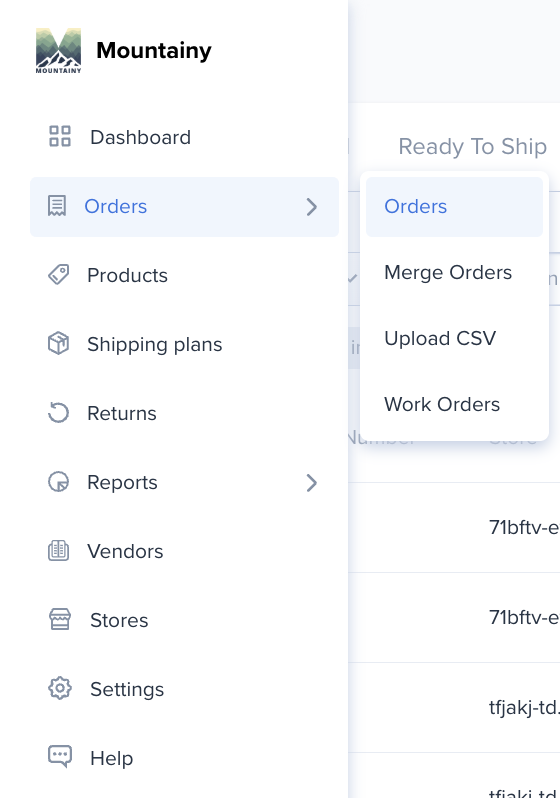
This will take you to the main Orders page, where you can search, filter, and review individual order statuses.
From here, you will be able to locate the specific order in question and review its fulfillment status.
Understanding Order Status Tabs
At the top of the Orders page, you’ll see several tabs that group orders by fulfillment status. These help you quickly determine where an order is in the process.
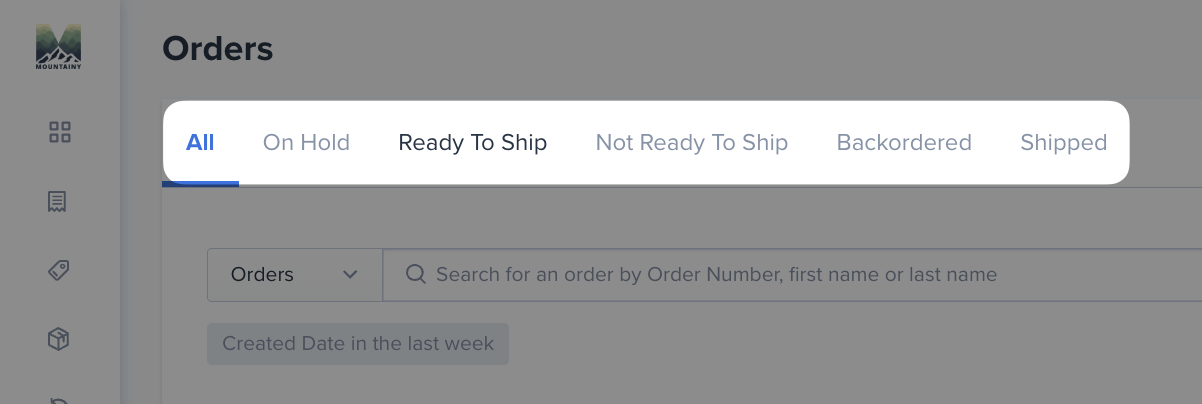
All – Displays every order in the system, regardless of status.
On Hold – Orders paused due to an issue such as unavailable inventory, address validation errors, payment status, or manual review. These require action before shipping.
Ready To Ship – Orders that are approved, in stock, and queued for fulfillment.
Not Ready To Ship – Orders that are not yet eligible for fulfillment, often due to timing, inventory, or missing information.
Backordered – Orders containing one or more out-of-stock SKUs. These will move forward once inventory is available.
Shipped – Orders that have already been fulfilled and shipped. Tracking has been generated and sent back to Shopify.
Review Orders in the “On Hold” Tab
Click the On Hold tab at the top of the Orders page.
All orders listed in this section are currently paused and will not ship until the issue causing the hold is resolved.
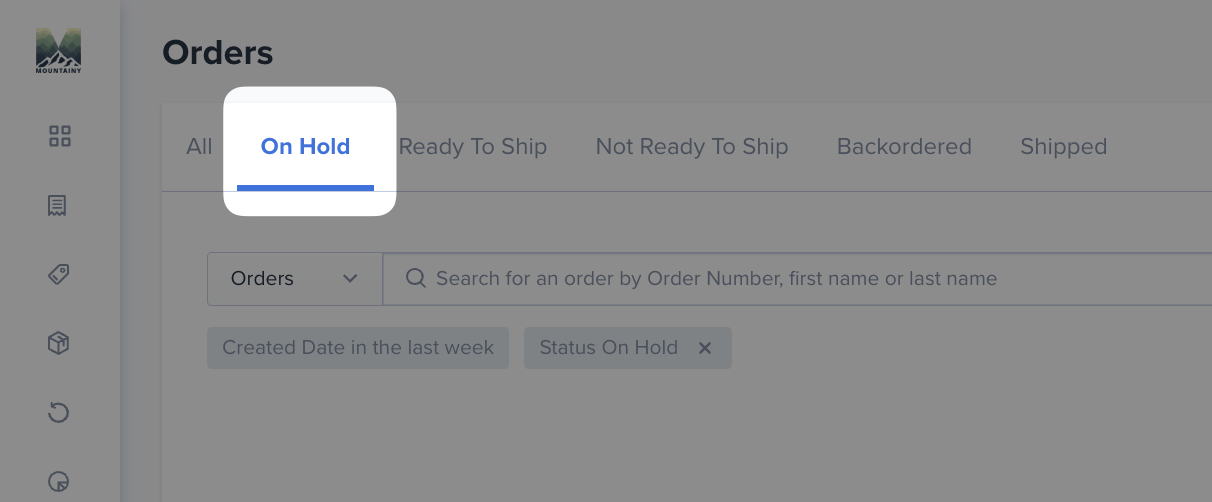
To identify the reason an order is on hold:
Click on the Order Number.
Review the banner message at the top of the order details page.
The hold reason will be clearly displayed (for example: address hold, inventory unavailable, backordered items, etc.).
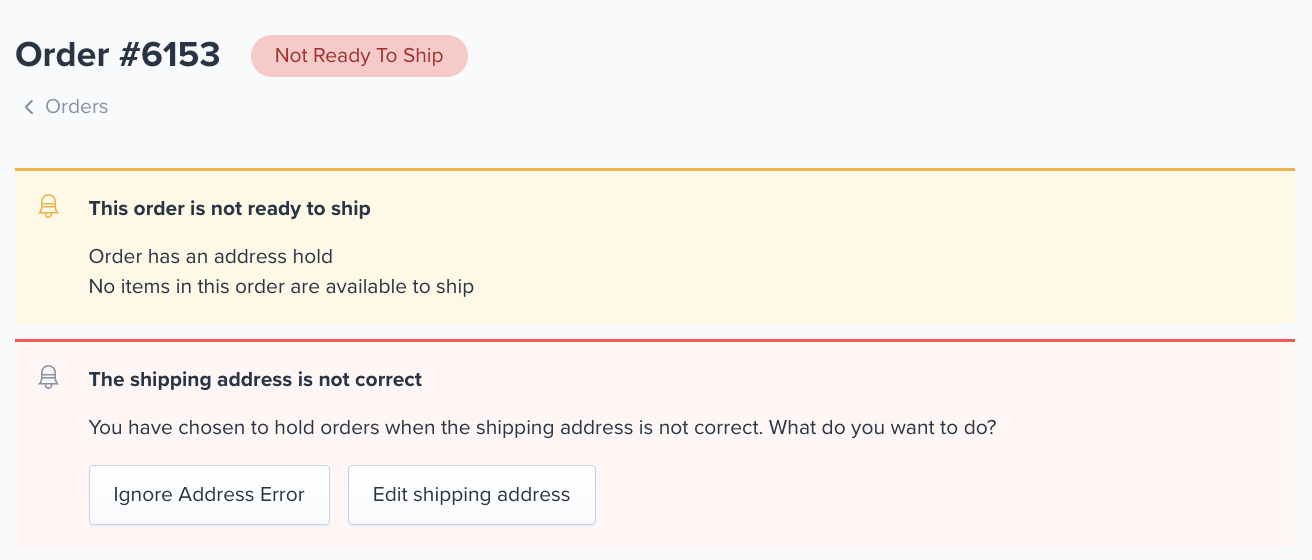
The order detail page will indicate exactly why the order is not ready to ship and what action is required.
Common Hold Reason: Address Validation Issue
If an order displays a message such as:
“The shipping address is not correct”
or
“Order has an address hold”
The order will not move to fulfillment until the address issue is resolved.
Recommended Next Steps
Contact the customer to confirm the shipping address is accurate and deliverable.
Verify that all required address fields are complete (street, unit number, city, state, ZIP, country).
If the Address Is Correct
If the customer confirms the address is correct:
Message the Mountainy team in Slack with the order number.
We can manually review and remove the hold if appropriate.
If the Address Needs to Be Updated
If the address is incorrect:
Update the shipping address directly in Shopify.
Once updated, the change will automatically sync to the 3PL portal.
If ShipHero accepts the updated address as valid, the address hold will automatically be removed and the order will move forward in the fulfillment process.
Updating the address in Shopify ensures:
The correction is reflected in your system of record.
Future orders from that customer will use the correct address.
No manual re-entry is required in the portal.
Address holds are one of the most common reasons orders do not ship. Confirming and correcting them promptly helps prevent any orders being held up.
Common Hold Reason: Backordered or Out-of-Stock SKUs
If an order appears under the Backordered tab or displays a message indicating items are unavailable, one or more SKUs in the order are not currently allocated or in stock within the 3PL system.
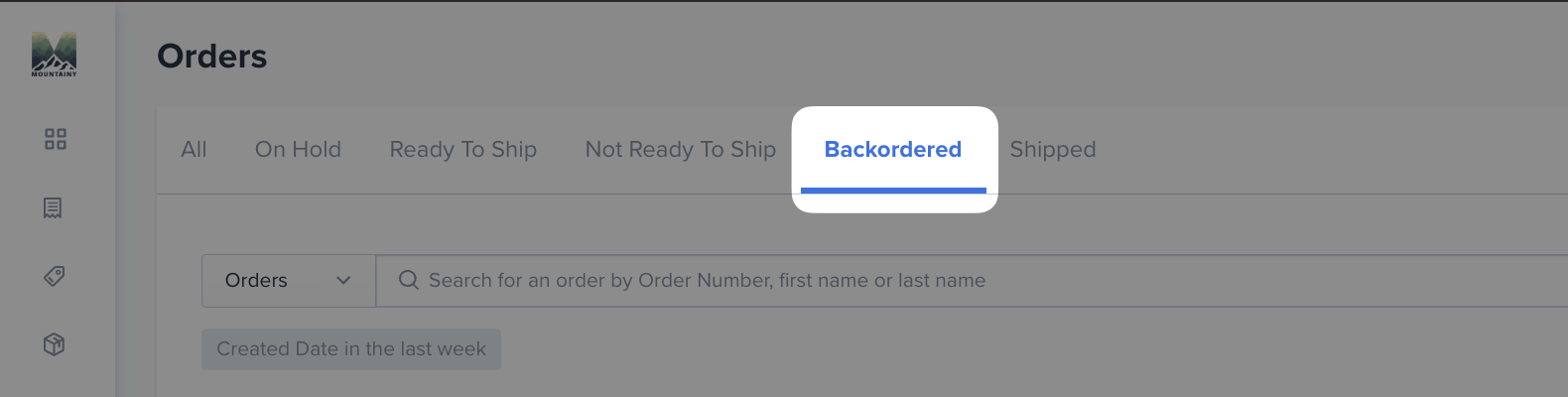
Orders containing backordered SKUs will not move to fulfillment until inventory is available or the SKU configuration is corrected.
Most Common Causes Of " Backordered " Status
1. Inventory Is Out of Stock (OOS)
The SKU is currently out of stock in the Mountainy Warehouse.
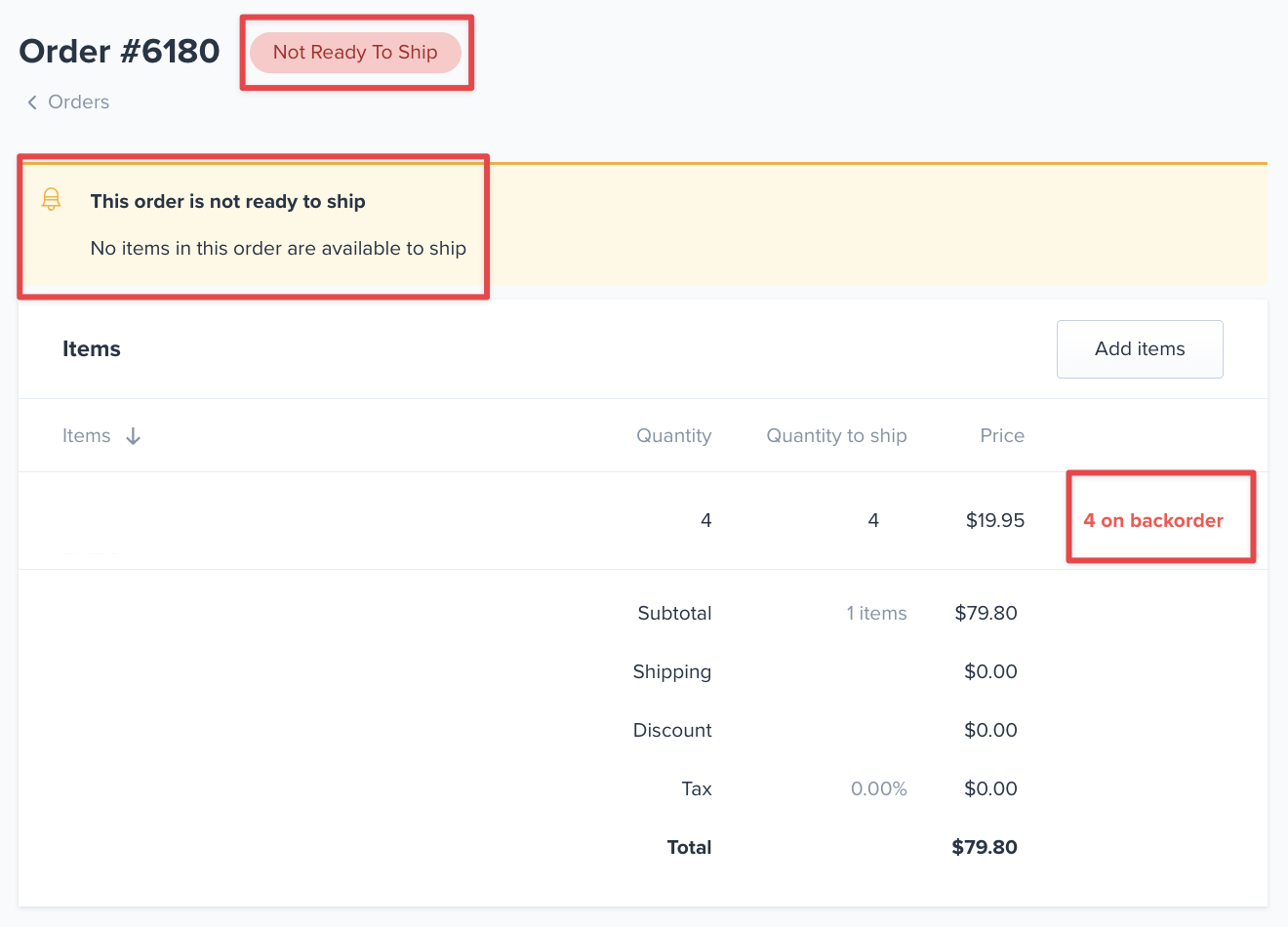
What to check:
Confirm available inventory levels in the Products section.
Review inbound Shipping Plans to see if inventory is in transit.
Confirm the inventory has been fully received and allocated.
If inventory was recently delivered but is not yet reflected as available, notify Mountainy in Slack with the SKU and PO number.
2. SKU or Bundle Configuration Issue
In many cases, the SKU exists in Shopify but is not properly mapped in ShipHero.
For example:
PROD-A is the physical unit stored in the warehouse.
PROD-A-4PK exists in Shopify as a 4-pack.
PROD-A-4PK represents 4 units of PROD-A.
If ShipHero is not configured to recognize PROD-A-4PK as 4x PROD-A, the system will treat it as a completely separate SKU.
If no physical PROD-A-4PK SKU exists in the warehouse, the order will automatically move to Backordered.
What To Do
If the issue is inventory-related:
Confirm whether inventory is truly out of stock.
Review inbound POs for pending receipts.
If the issue is bundle-related:
Confirm how the SKU is configured in Shopify.
Notify Mountainy in Slack with:
The affected SKU
The base SKU it should reference
The quantity relationship (e.g., PROD-A-4PK = 4x PROD-A)
Once the bundle mapping is configured correctly in ShipHero, future orders will allocate inventory properly and track inventory properly. Verifying inventory levels and bundle mappings will resolve most cases quickly.
When to Contact Mountainy
After reviewing the order, please contact Mountainy in Slack if:
Inventory is available, fully received, and the order is not allocating properly
The shipping address has been confirmed or corrected, but the address hold remains active
The order was not shipped and no clear hold reason is displayed in the portal
The order is showing " Operator Hold " and you can not remove the hold
ShipHero SKUs need bundling to allocate properly
When reaching out, include:
The order number
The affected SKU(s) (if applicable)
A brief summary of what has already been reviewed and the issue you are seeing.
Providing this information upfront allows our team to investigate quickly and resolve the issue efficiently.