How to Add and Manage Users In Your 3PL Portal
Last updated: February 28, 2026
Overview
Mountainy’s 3PL portal allows you to manage and customize user access within your organization. Proper user management ensures your team has the right level of visibility while maintaining operational control.
This guide outlines the different user types available and explains how to add, edit, or manage users within your portal.
User Roles Overview
There are two user types available within the portal:
Admin User and Standard User
Admin Users have full access to all portal functionality, including:
Managing users
Accessing inventory reports
Viewing inventory movement reports
Accessing revenue and dashboard metrics
Uploading orders
Admin access is typically limited to trusted team members who require full operational visibility.
Standard Users have limited access and cannot access:
User management settings
Inventory reports
Inventory movement reports
Revenue and dashboard metrics
Order uploads
This role is typically appropriate for customer service representatives or team members who require operational visibility but do not need administrative permissions.
Step 1: Accessing the 3PL Portal
To begin, navigate to the ShipHero client portal:
Go directly to: https://shipsfor.us/account/login/
Sign in using the account credentials provided by your Mountainy account manager.
If you have not received login credentials, please contact the Mountainy team before proceeding.
Step 2: Adding a New User (Admin Only)
Only Admin Users have permission to add or manage users within the 3PL portal.
To add a new user:
Navigate to Settings > Users
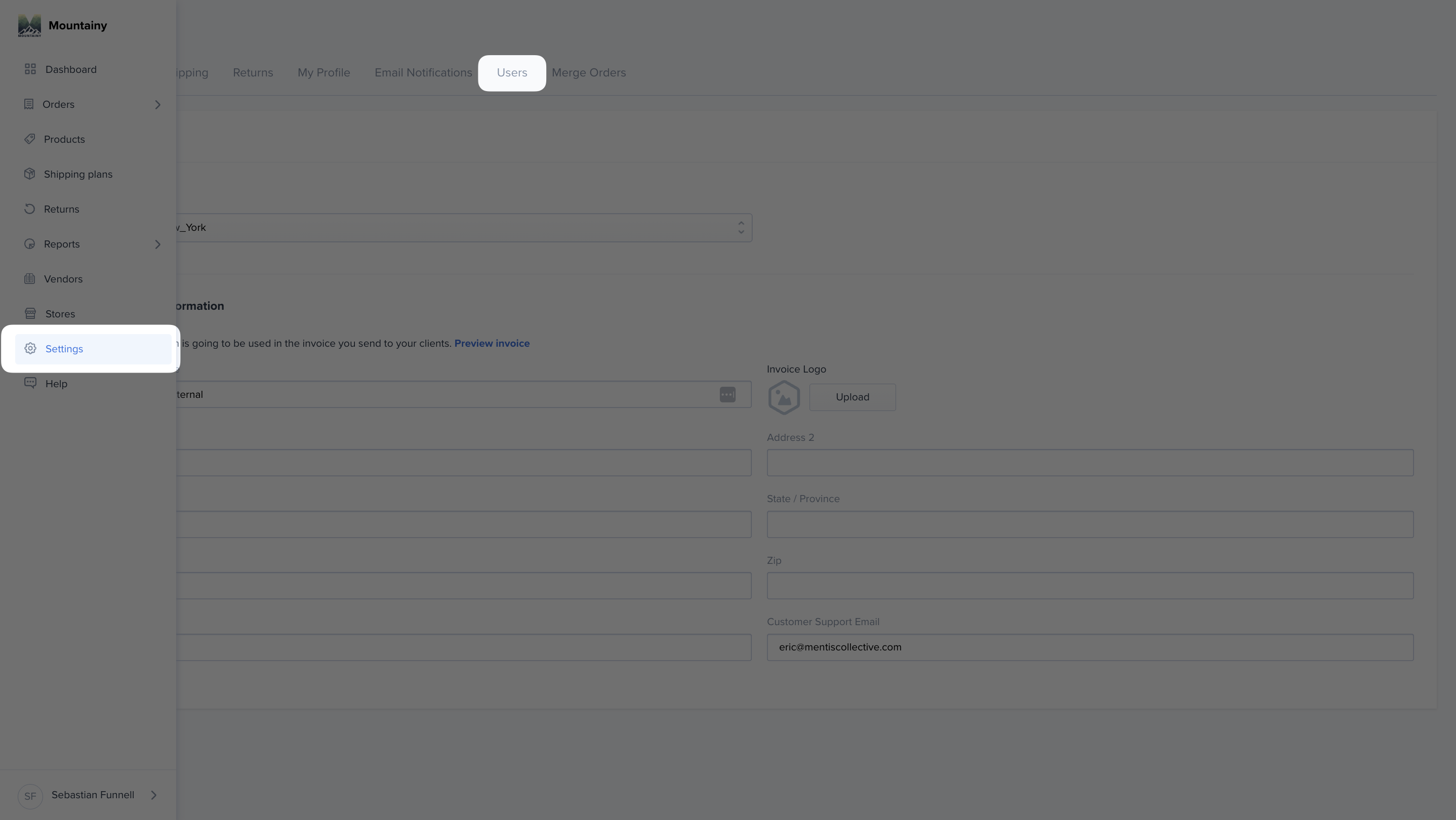
Once you navigate to the User section under Settings, you should see a button in the top right corner that says “Add User.”
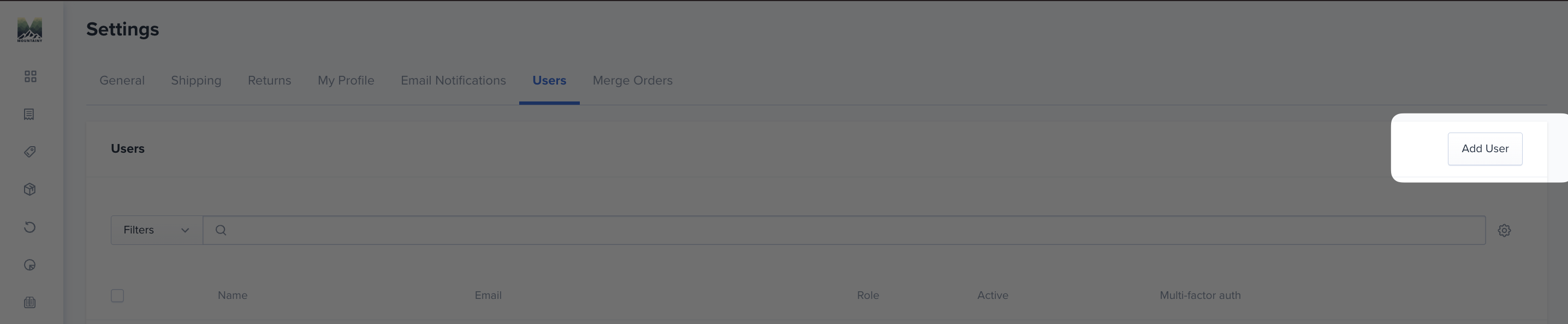
If you do not see that button, then your account does not currently have Admin permissions.
2A: Enter the required information
Full Name
Email Address and Password
Select the appropriate user role (Admin or Standard)
Click Save
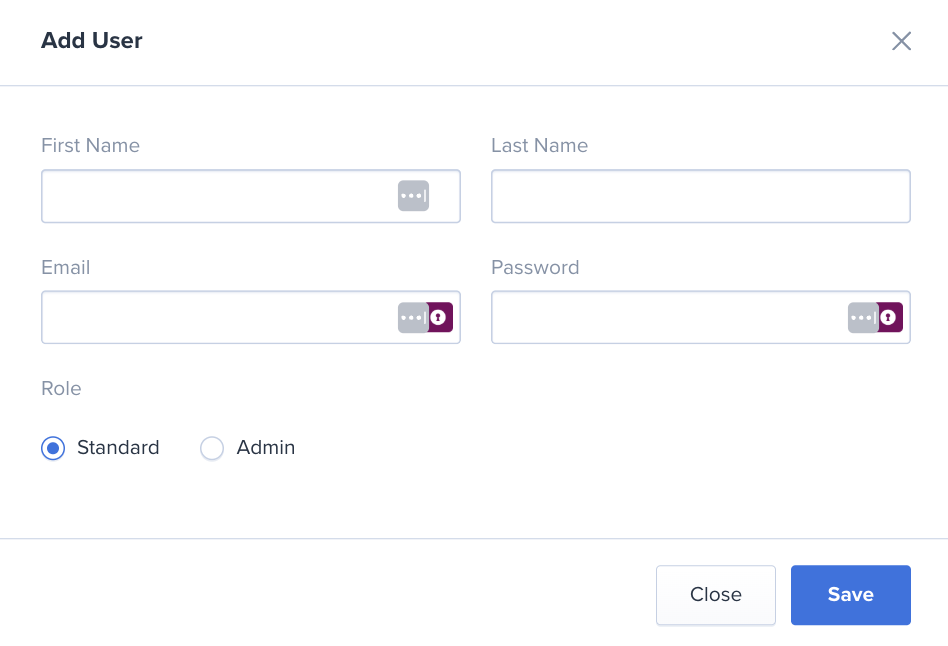
Once saved, inform the new user of login instructions and the required login credentials.
Editing or Managing an Existing User
Only Admin Users can edit user roles, update account information, or deactivate users.
To edit a user:
Navigate to Settings.
Click on the Users tab.
Locate the user you would like to modify.
Click the three dots (⋯) on the far right side of that user’s row
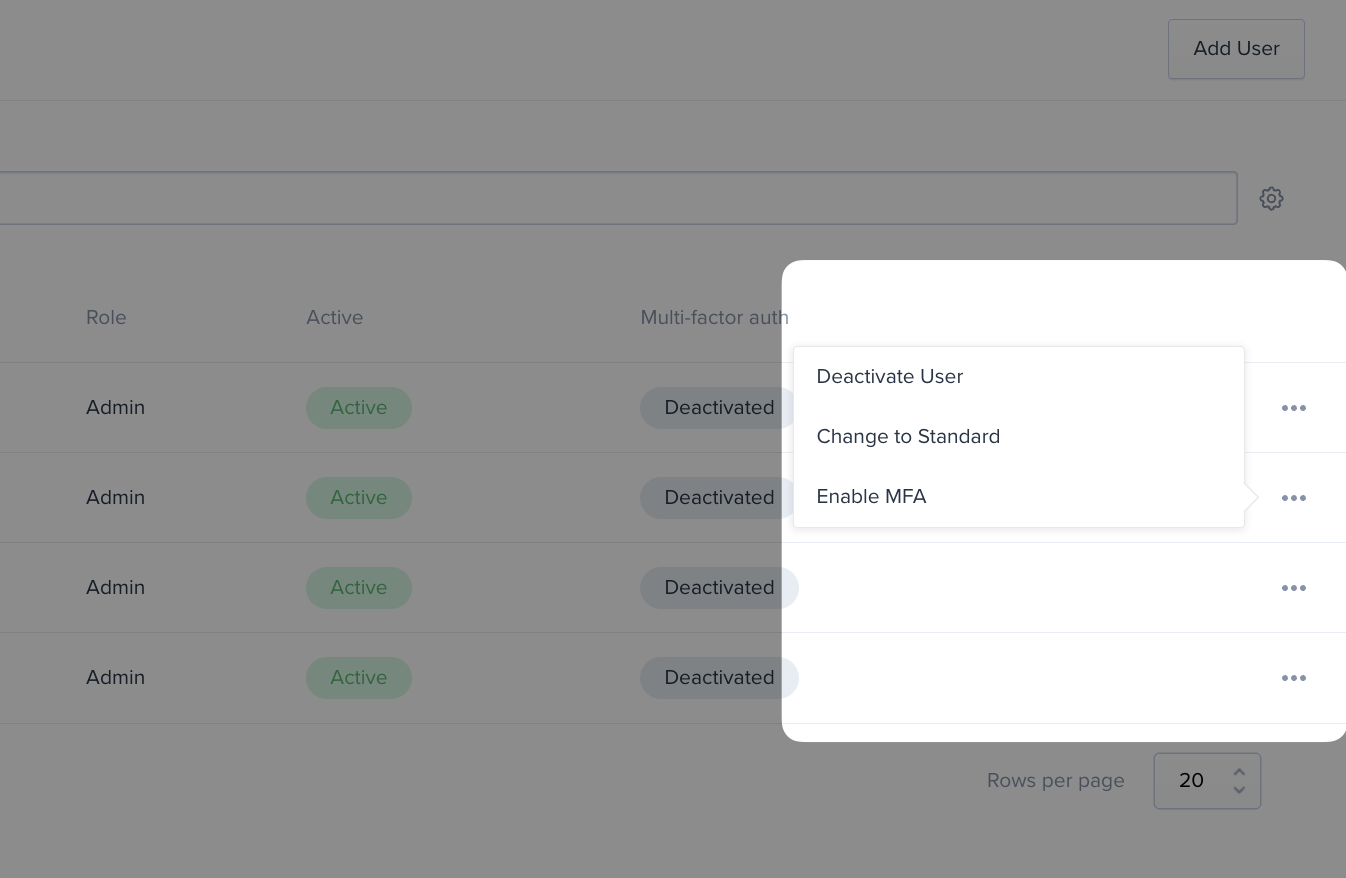
Available actions may include:
Enabling MFA
Changing user role (Admin or Standard)
Deactivating the user
After making any changes, click Save to apply updates. All changes take effect immediately after saving.
Need Help?
If you experience any issues adding, editing, or managing users within the 3PL portal, please reach out to the Mountainy team in Slack.
When contacting support, include:
The user’s email address
The action you are trying to complete
A screenshot of any error message (if applicable)
Providing these details helps us resolve your request quickly and efficiently.